Advanced DaVinci Resolve Scopes: Hidden Settings, HDR Scopes and Broadcast‑Safe Colour Grading
Updated: Jan 4

Advanced DaVinci Resolve scopes: hidden tools for pro colour grading
When you colour grade day in, day out for clients, you quickly learn that the basic scopes in DaVinci Resolve only take you so far. The real control comes from the advanced options hiding in the scope menus and HDR settings.
As a freelance video editor in London working on commercials, corporate interviews and documentary pieces, these advanced scope tools in DaVinci Resolve are what keep grades consistent across different cameras, delivery specs and viewing environments. They are the reason a film still looks right on a client’s uncalibrated laptop after you have signed it off in the suite.
This guide builds on the main DaVinci Resolve scopes tutorial and takes you into the pro-level features most creators never touch: Low Pass Filter, Extents, Display Qualifier Focus, HDR nit scales, broadcast-safe vector scope targets and chromaticity scopes. You will see how to set them up, when to use them, and how to fold them into a practical grading workflow you can use on real client jobs.
If you need a refresher on what each scope actually does, read the core guide on how to use scopes in DaVinci Resolve, then dive back into this article.
Hidden scope settings in DaVinci Resolve: Low Pass Filter, Extents and scope quality
Every scope in DaVinci Resolve has an options menu. You should use it. These controls make scopes cleaner and more accurate.
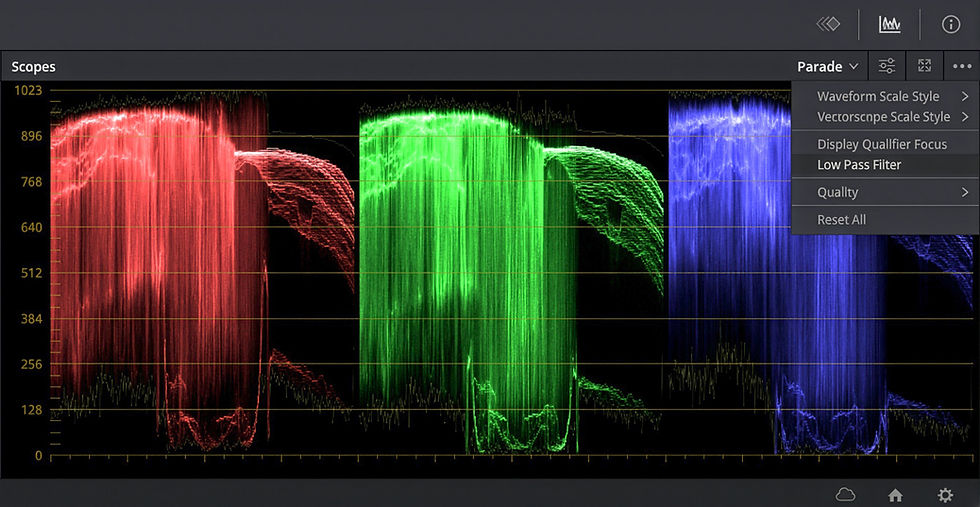
Low Pass Filter
Low Pass Filter smooths noise in the trace so you see the real signal.
It reduces grain and high‑frequency noise on Waveform, Parade and Vectorscope.
It helps you judge black level and highlight roll‑off without the trace jumping around.
Extents
Extents draws an outline around the actual highest and lowest values in the signal.
It shows you true clip points, even when Low Pass Filter hides noise spikes.
You can see exactly how far highlights and shadows reach.
Scope quality
You can also set scope quality to Auto or higher.
Auto balances performance and detail.
On a strong GPU, higher quality can reveal finer detail in noisy or complex shots.
Actionable steps
Open the scopes. Click the three‑dot menu.
Turn on Low Pass Filter and Extents for Waveform and RGB Parade.
Leave quality on Auto unless you see aliasing or missing detail.
If this feels new, you can always lean on the basic scopes article first, then return to these extra controls when you are ready.

How to use Display Qualifier Focus in DaVinci Resolve scopes
Display Qualifier Focus links your viewer to your scopes. It lets you see exactly where any pixel lives on Waveform, Parade and Vectorscope.
When you hover over the image with the Qualifier:
Resolve draws circles on each visible scope at that sample’s position.
You can see where skin sits, where a neutral wall lands, or where a specular highlight is clipping.
Why this matters
You stop guessing which part of the trace belongs to which area of the image.
You can line up skin tones, neutrals and highlight details with much more precision.
Actionable steps
Open scopes and click the three‑dot menu. Turn on Display Qualifier Focus.
In the viewer, select the Qualifier tool.
Hover over faces, neutrals, shadows and highlights.
Watch where the circles appear on Waveform, RGB Parade and Vectorscope.
Use this together with the basic scopes workflow from the main guide and you will feel your control increase immediately.
HDR scopes in DaVinci Resolve: ST.2084, nit scale and white point clipping
When you grade HDR with ST.2084 (PQ), the scopes can show brightness in nits instead of generic code values. This changes how you read clip points.
In ST.2084 mode:
Each code value maps to a specific nit value on the waveform.
The white clipping point moves depending on your mastering nit setting.
Approximate white clip positions for common HDR ST.2084 targets:
300 nits → clip around code value 640
500 nits → clip around 695
800 nits → clip around 745
1000 nits → clip around 768
2000 nits → clip around 845
4000 nits → clip around 920
If you master at 1000 nits and see clipping around 768 on the waveform, that is expected. The system is doing what it should.
Actionable steps
In DaVinci Project Settings → Color Management, choose an HDR output colour space such as Rec.2100 ST.2084.
Turn on HDR scopes for ST.2084 so the waveform uses a nit‑based scale.
Use Extents plus reference lines at your mastering nit level to watch highlight limits.
You can still follow the same basic order as the beginner scopes guide (Waveform → Parade → Histogram → Vectorscope), but now with correct HDR values on screen.
Video vs data levels in DaVinci Resolve scopes: 64–940 vs 0–1023
A lot of grading problems in Davinci come from mismatched video (legal) levels and data (full) levels. Your scopes will look wrong if levels do not match your media and output.
Full/data levels: 0–1023 in 10‑bit signals. Common for many cameras and grading pipelines.
Video/legal levels: black around 64, white around 940, used for broadcast.
If you treat legal footage as full:
Blacks rise and whites dull. The scope shows a squeezed range.
If you treat full footage as legal:
Blacks crush and whites clip because Resolve tries to squeeze 0–1023 into 64–940.
Actionable steps
Check your camera and delivery specs to see if they expect full or video levels.
In Resolve, set clip attributes or project input levels to match.
For broadcast work, output on video levels and keep important detail inside the 64–940 range on the waveform.
The basic scopes blog already teaches you where blacks and whites should sit visually. Here, you just add the layer of “what level range am I using?” on top.
Broadcast-safe colour using Vectorscope 75% targets and chromaticity scopes
For TV and strict platforms, you must keep both luma and chroma within spec. Scopes give you a clear way to police this without killing your look.
75% vs 100% Vectorscope targets
Your Vectorscope usually shows inner and outer boxes.
The 75% targets mark safe broadcast saturation for colour bars and typical HD colour.
The 100% targets show the outer edge, more useful for web, streaming or stylised looks.
Actionable steps
For broadcast jobs, keep your saturation inside or near the 75% boxes, especially for strong reds and blues.
For YouTube or web, you can push closer to 100%, but still watch for ugly clipping and banding.
Chromaticity (CIE) scope
The chromaticity scope plots your pixels on a CIE diagram with colour space triangles such as Rec.709.
Colours outside the Rec.709 triangle can clip or shift on standard HDTVs.
This matters when you grade in wide gamut (P3, Rec.2020) but deliver to Rec.709.
Actionable steps
Enable the chromaticity scope if your setup supports it.
Check bright, saturated areas (logos, neon, VFX) stay inside the Rec.709 triangle when that is your delivery space.
Pull them back with saturation, hue shifts, or gamut mapping nodes if they escape the triangle.
Advanced Vectorscope techniques: tonal splits, 2x zoom and skin tone control
You can drive the Vectorscope harder by separating tonal ranges and using zoom. This gives you more precise control over shadows, mids and highlights.
Split lows, mids and highs
Use tools like HDR wheels, Log wheels or custom curves to isolate parts of the image.
Put shadows in one node, midtones in another, and highlights in a third.
Watch how each node plots on the Vectorscope.
This lets you:
Keep shadows neutral while adding warm, rich midtone skin.
Push highlight colour contrast (for example teal and orange) without polluting the whole image.
Use 2x zoom to clean neutrals
2x zoom on the Vectorscope centre reveals subtle casts.
Zoom in and use Display Qualifier Focus on “neutral” areas like suits, walls or clouds.
Nudge hue until that small cluster sits dead centre for true neutral shadows and highlights.
Refine skin with the skin tone line
The skin tone line lines up with the hue of haemoglobin in blood. It works across skin tones.
Isolate skin with a qualifier or window.
Use 2x zoom and Display Qualifier Focus to see the skin cluster relative to the line.
Gently rotate hue and adjust saturation until skin feels natural for the light and the story, not just mathematically “perfect”.
Your basic scopes article already introduces the skin tone line. Here, you add the zoom and tonal split tricks to push that control further.
Here is how you can combine these advanced tools in a real grade.
Prepare your scopes
Turn on Low Pass Filter and Extents on Waveform and Parade.
Enable Display Qualifier Focus across all scopes.
If grading HDR, switch to an ST.2084 output space and turn on HDR scopes.
Balance exposure and colour precisely
Use the waveform with Extents to set black and white points within your chosen range (Rec.709 or HDR).
Sample faces and neutrals with the Qualifier and check Parade and Vectorscope to get a clean, neutral base.
Shape HDR highlights safely (if needed)
Watch the waveform nit scale and white point reference lines as you push specular highlights.
Use HDR or Log wheels to shape highlight zones without blowing past your mastering nit limit.
Check legality and gamut
For broadcast, keep saturation inside the 75% Vectorscope boxes and luma within legal levels.
Use chromaticity to ensure colours stay within the Rec.709 triangle for HD work.
Refine mood and separation
Split lows, mids and highs if needed. Use the Vectorscope to keep shadows neutral, skin flattering and highlight colours expressive.
Zoom in to clean neutrals, then zoom out to confirm your overall colour contrast and style.
If you pair this workflow with the simpler step‑by‑step process from the main scopes guide, you get a repeatable path from “safe and balanced” to “polished and broadcast‑ready.”
Davinci Resolve Scopes are tools. Your taste still decides.
Even with all these advanced options for grading, scopes do not get a creative vote. They show you where your signal is clipping, drifting or breaking spec. They do not tell you what look fits the story.
You use scopes to:
Catch problems your eyes miss, especially over long sessions or in tricky lighting.
Keep your work technically solid for Rec.709, HDR or broadcast delivery.
You use your taste, your client’s brief and your own experience to decide how far to push contrast, colour and saturation. That is the balance used every week in real‑world DaVinci Resolve projects graded by a London‑based video editor.
If you are a London based business that needs a video editor please get in touch!


Comments